

Image to Excel
Image to Excel
Bring the table in a photo, screenshot or scanned page back into a spreadsheet. Documni reconstructs its rows, columns and values so you can work with the figures, update the table and export an editable Excel workbook.
Documni is free to start. Making pages editable is part of Pro. Beta opens 25 November 2026.
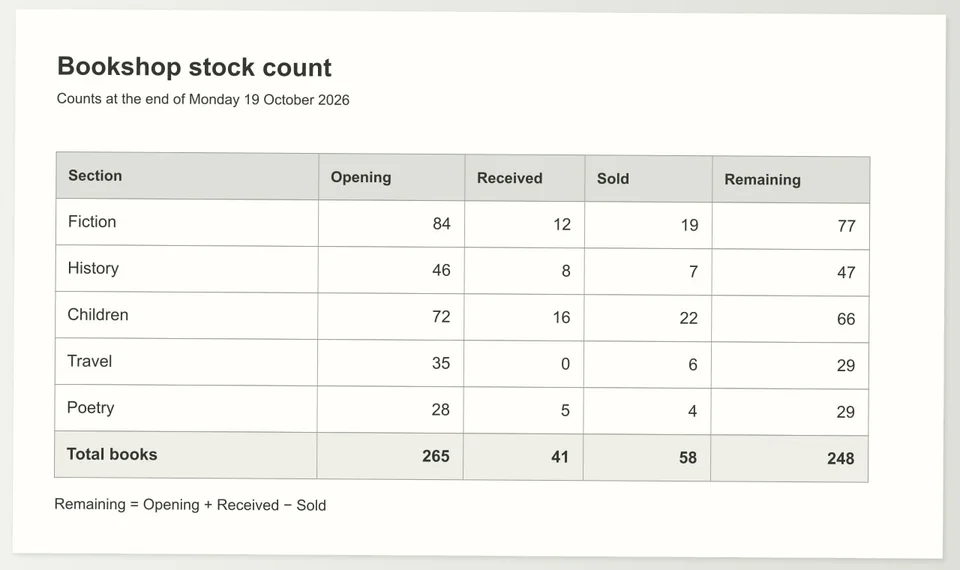
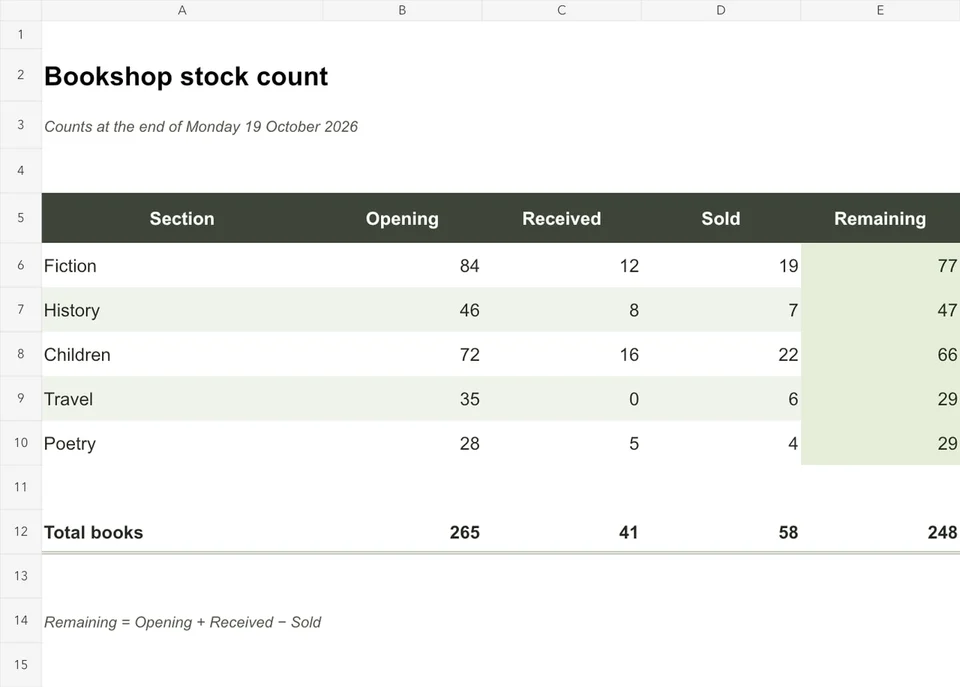
Open the page. Explore the editable file.
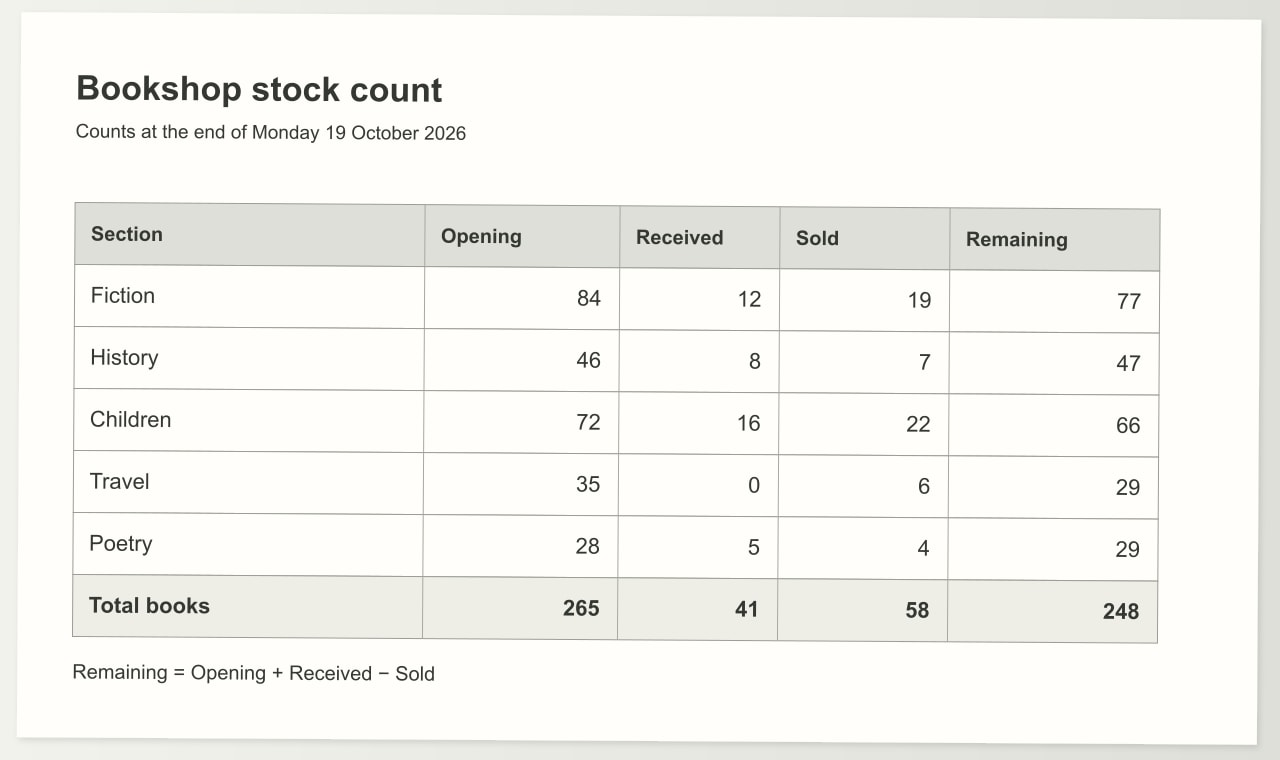
Explore a sample bookshop stock table as an image and an editable Excel workbook. Check the item headings and quantities, change a value in the workbook and inspect the cells that calculate from it.
Download the sample to edit its text, formatting and content.
How it works
Open the table image
Bring a clear photo, scan or screenshot into Documni. Include the complete table and the units beside it. Straighten the source and check that no heading or final row has been cut off.
Review the reconstructed cells
Make the table editable and compare headings, row order and values with the source. Check number types, decimal separators, identifiers and blank cells before introducing new calculations or sorting the table.
Export and use the workbook
Save the working document and export .xlsx. Open the workbook, select the cells and inspect any formulas. Test a relevant input change and confirm that the calculations update as intended.
What stays editable
- Rows, columns and table headings
- Numeric values for calculations
- Text identifiers and item names
- Number and currency formats
- Totals and intentional spreadsheet formulas
Start with the table you need to reuse
A picture of a table is useful for reading a figure, but maintaining stock needs the values in cells. You may want to sort books by title, change a quantity or calculate an order. Reconstructing the table gives each value a place in a row and column, with its heading and item name kept beside it.
Inspect the source before converting it. Include all column headings, the leftmost item names and the bottom row. A tightly cropped screenshot can leave out the unit that explains a number. For a photograph, keep the page flat and the camera square to the table, with even light across both sides.
Keep numbers as numbers and identifiers as text
An Excel cell needs the right kind of value. A stock quantity should behave as a number when you add it to another quantity. A product identifier may need to stay text so leading zeros survive. Currency, percentages and dates need their own display formats. Decide what each column represents before applying one format to the entire table.
Look carefully at decimal separators and thousands separators. A source that uses a comma for decimals should not become a different value when opened in another regional setting. The workbook should hold the underlying number, with formatting controlling how it appears. Review negative values, blank cells and zero values separately; they can mean different things in stock records.
Recover a useful grid before adding calculations
Check the table structure from left to right. Multi-line headings, wrapped book titles and merged headings can make a value appear to belong to the wrong column. Compare the first row, a row in the middle and the final row with the image. Then check for any continued table on a second page before sorting or adding records.
Keep a copy of the reconstructed data before adding new calculations. A printed total can be checked against the underlying rows. A new reorder calculation is a decision you add to the workbook; it should not be mistaken for a formula recovered from a picture. Make the inputs and the calculated cells easy to distinguish for the next person who edits it.
Explore an editable spreadsheet
Open the sample bookshop workbook and select individual cells. Change a stock quantity, check a calculation and widen a column if a title wraps. This is a practical way to understand the difference between a table image and a spreadsheet you can maintain. Compare the example image and workbook to see how the rows and headings fit together.
Before sharing your own exported .xlsx file, check that its important numbers are visible without clipped digits or narrow columns. Confirm that formulas refer to the intended rows and that any totals cover the full table. Save the source image with a clear name so another person can check a disputed entry without searching through unrelated documents.
Hard cases: angled photos, merged headers and two-page tables
A table photographed at an angle runs uphill, and values near the edge can slip into the neighbouring row. Compare the outer rows and columns with the source first. A merged header, such as one heading above two columns, should read as a single cell; check that every column beneath it still belongs to the right heading.
Faint print or glare hides small digits, especially commas and the figure 1. Read those cells against the original, and compare the totals with the totals printed on the page, since one wrong digit shows up there at once. Do not fill an unreadable value with a guess; leave the cell empty and return to the source.
When a table runs over two pages, the header row is often printed again. Make sure it appears once, not as a data row, and that the row at the page break is neither doubled nor missing. If each page shows a subtotal, keep it out of the grand total, or the same quantities are counted twice.
Your questions
Will the numbers be usable in Excel formulas?
They should be stored as numeric cell values when the source represents numbers. Review the imported values and formats, then test a calculation using a few cells. Keep identifiers such as stock codes as text when that preserves their meaning. An image of a number alone is not a numeric spreadsheet value.
Can I use a blurry photo of a table or receipt?
Start with the clearest available image. Blur, glare and cropped edges can hide digits or column boundaries. Retake the photograph in even light when possible, and review every important amount against the source. A receipt may also need its line items separated from taxes, totals and payment information before you use the figures.
Will formulas be recovered from the picture?
A picture usually shows a result rather than the formula that produced it. Preserve the visible values and use the table structure to check totals. Add a formula when the intended calculation is known, and distinguish that addition from the values read from the image. Never assume that two matching totals prove the original calculation.
Which plan includes image-to-Excel conversion?
Recognition, reconstruction and advanced conversion belong to Documni Pro; plan details explain the tools included. The sample image and Excel workbook on this page are free to download. You can explore them without uploading a document or starting a subscription.
Can I convert several tables into one workbook?
Organise related tables into sheets that preserve their headings, units and source context. Check each table before combining the rows, especially where column names or periods differ. A stock list and an order list may describe different events even when both contain quantities. Keep the source relationship clear as the workbook grows.