

Edit a scanned PDF
Edit a scanned PDF
Correct a date, replace a paragraph or update a table in the scanned document you already have. Documni turns the page into editable content so you can make the change and prepare a clear PDF to share.
Documni is free to start. Making pages editable is part of Pro. Beta opens 25 November 2026.
Open the page. Explore the editable file.
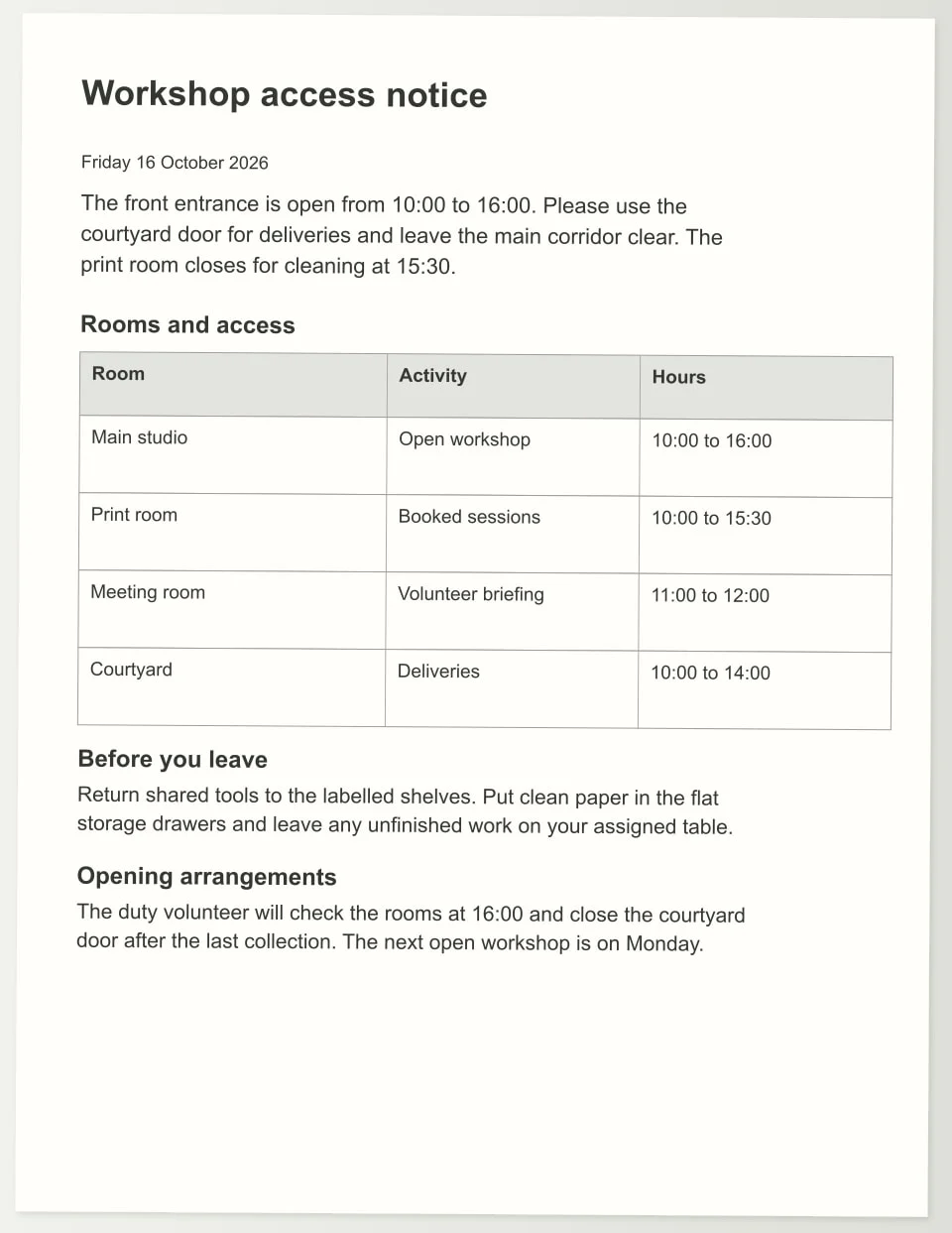
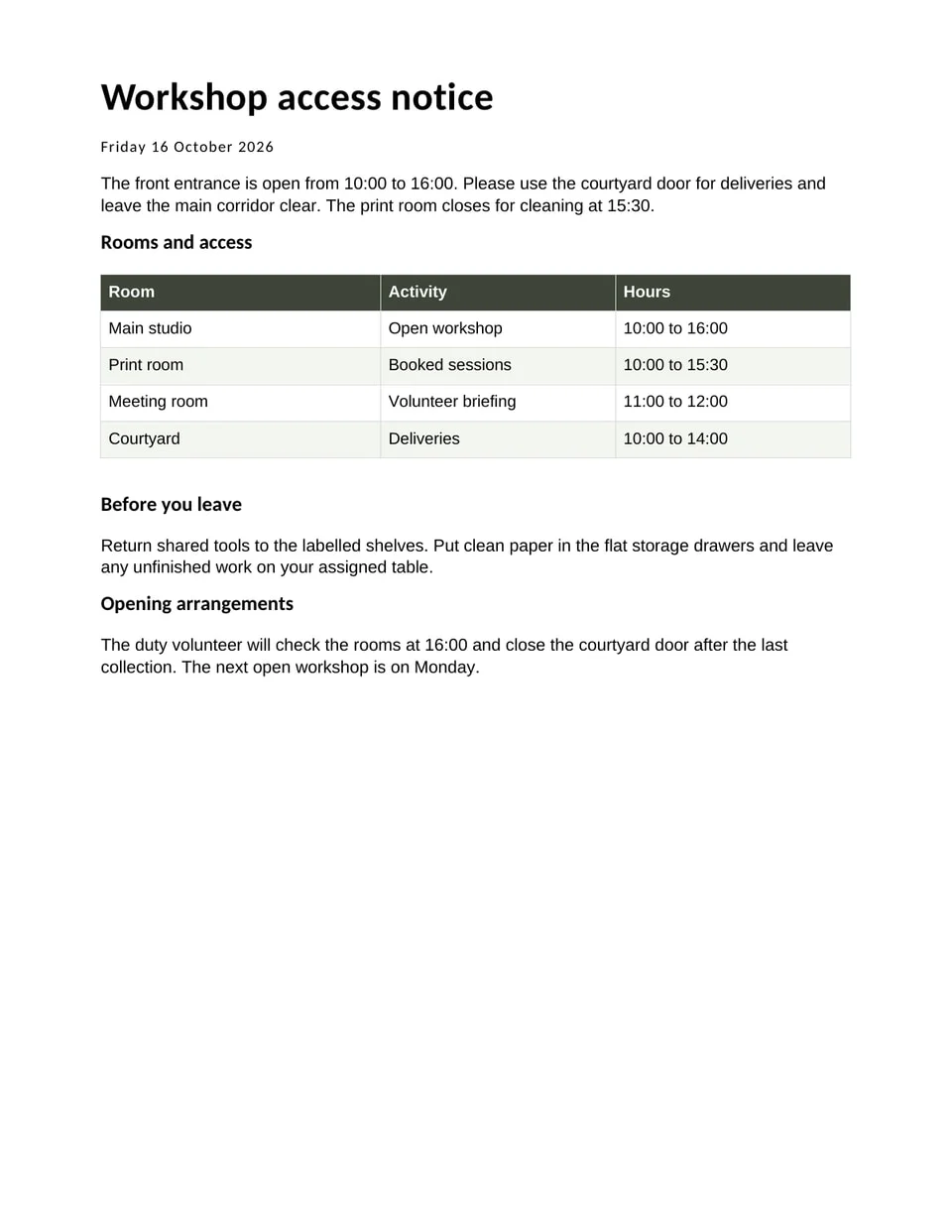
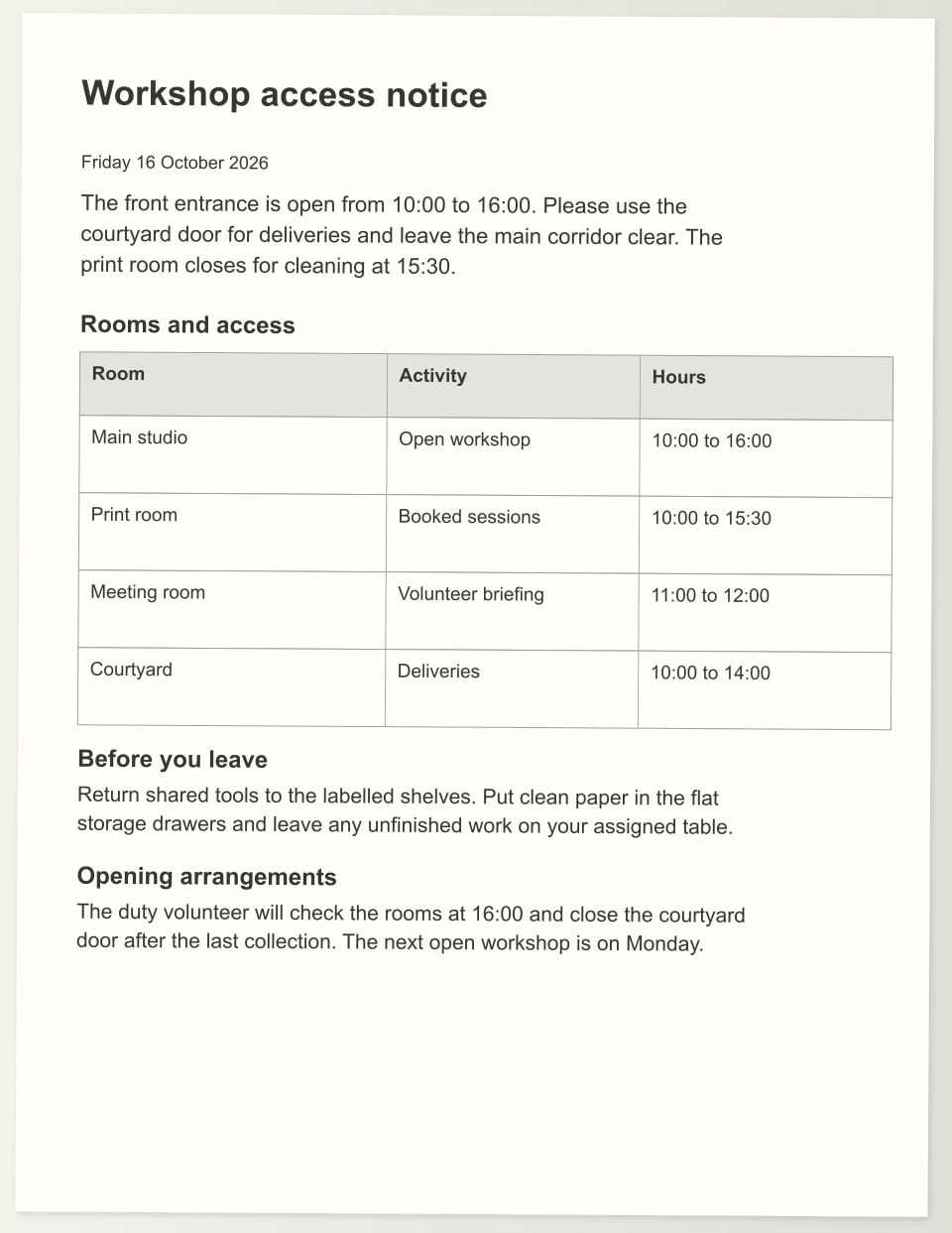
Explore an example workshop access notice as a page image and an editable document. Inspect the wording and the separate paragraphs and table in the download, then try changing the details for another session.
Download the sample to edit its text, formatting and content.
How it works
Open and inspect the scan
Open the scanned PDF and identify the exact revision. Check that all page edges and the relevant wording are visible, then keep the source unchanged while you work on a separate editable copy.
Reconstruct and make the change
Make the page fully editable, review its text and object structure, and apply your revision. Adjust the spacing or surrounding layout when replacement text takes more room than the original.
Save and check the PDF
Keep the .dcmi working document and export a PDF for the recipient. Open the export, inspect every changed page and confirm that the page order and important details are correct.
What stays editable
- Existing text and typography
- Images, logos and their placement
- Tables and individual cell values
- Page arrangement and spacing
- The working document for later revisions
Decide what the page needs to change
Start with the actual revision. A workshop notice might need a different arrival time, a new room or clearer access instructions. Mark those changes before editing the page. This helps you preserve the parts that still matter, including the document title, contact instructions and the relationship between a table heading and its contents.
Editing a scan involves more than placing a new line of text above a picture. The existing words, spacing and nearby objects must remain coherent after the change. Reconstruct the page into text, images and other document elements, then edit those elements in the workspace that fits the job. Keep the source as a separate file.
Keep the page readable after the revision
Longer replacement text needs room. Check whether it changes line breaks, crowds a nearby image or pushes a table beyond the page edge. Match the purpose of the original typography: headings should still read as headings, short instructions should remain easy to find, and fine print should be legible at the size people will receive.
For a notice or form, the arrangement often communicates meaning. A date beside an event title should remain attached to that event. An access instruction should sit with the relevant entrance or room. Use separate editable objects to adjust these relationships deliberately, then review the whole page at its intended reading size.
Treat tables and handwritten notes with care
A table is easier to maintain when its cells remain cells. Change an entry within its row, check the column heading and review any total that depends on it. Avoid turning the whole table into a replacement image just to fix one value. A structured table also gives you a better starting point if the figures later belong in Spreadsheet.
Handwritten additions require their own review. Distinguish a note from the printed text, and confirm names, abbreviations and dates from the source. A handwritten tick can carry a different meaning from a typed word. Preserve the original mark where that meaning matters, rather than treating every mark as ordinary paragraph text.
Review the complete PDF before sharing
Read the revised page from top to bottom, then compare it with the original. Look at the changed paragraph and the surrounding text, not just the place where the cursor was. Check punctuation, page numbers, table borders, image crops and any content close to the margin. Confirm that text you intended to replace is no longer visible underneath the new wording.
When the document contains several pages, verify their order and orientation as a set. Check that recurring titles and instructions still agree after an edit. Save the editable working file, then open the exported PDF to inspect what the recipient will see. A clear filename makes the revised notice easier to recognise in a shared folder or message.
Hard cases: slanted pages, mixed type and handwriting
A page scanned slightly rotated carries its tilt into every line. Straighten the page before you change wording, otherwise a new line sits at a different angle from its neighbours. Check the margins afterwards, because a corrected page can reveal an edge that was cropped during scanning.
Notices often mix a heading face, bold labels and small print. When you retype a word, match size, weight and spacing against the line beside it, and read the whole paragraph again, since a longer name can push a justified line onto the next one. If the original font is not available, pick a close one for the whole block rather than for a single word.
Handwritten additions on a typed form, stamps and signatures are part of the page picture. Decide for each one whether it stays, is retyped or is removed, and look at the result at full size before you save the PDF. Names, dates and amounts deserve a second reading against the source, whichever way you edited them.
Your questions
Is it possible to edit text in a scanned PDF?
Yes. Reconstruct the scanned page into editable document content, then change the words in that content. Review the layout after the change and export a PDF for sharing. The original scan remains your reference for checking meaning, spelling and the details you did not intend to alter.
Can I edit handwritten text in a scanned document?
Handwritten material needs recognition and careful review in context. Check the wording against the original mark, particularly names and dates. Keep a note or signature as an image when its visual form matters. A typed replacement should represent an intentional revision, not an assumption about an unclear handwritten word.
Does recognition preserve images and tables?
Document reconstruction keeps images and tables as parts of the page so their relationships can be edited. Review image crops, row order, column headings and the text around them. A table intended for calculations is also worth opening in a spreadsheet workflow, where you can inspect the values and formulas directly.
Is it safe to edit a scanned PDF online?
Consider where the document is processed, stored and shared before using any service. This page offers downloads and product information; it does not ask you to upload a document. In Documni, choose local files or the sync and collaboration workflow that fits the document and the people who need access.
Should I export PDF or Word after editing?
Use PDF when the recipient needs a stable page to read or print. Choose Word when they need to keep rewriting flowing text. Retain the .dcmi working document for further changes in Documni. Check the exported file in the format you actually intend to send, because each format serves a different task.