

Chart image to Excel
Chart image to Excel: get the data back
Reuse the information in a chart picture as editable data and a chart connected to those values. Documni reconstructs the chart structure so you can revise labels, update a series and carry the result into a spreadsheet or presentation.
Documni is free to start. Making pages editable is part of Pro. Beta opens 25 November 2026.
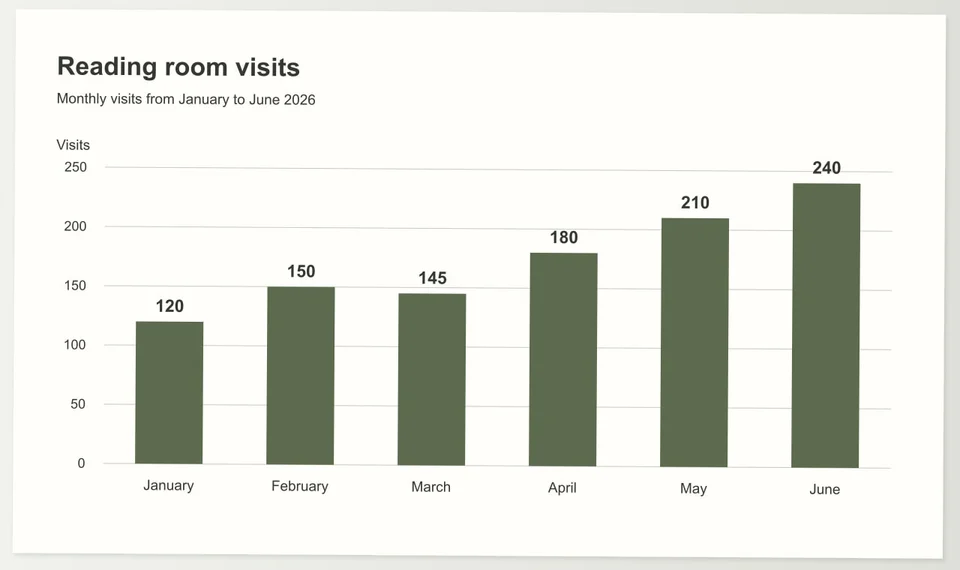
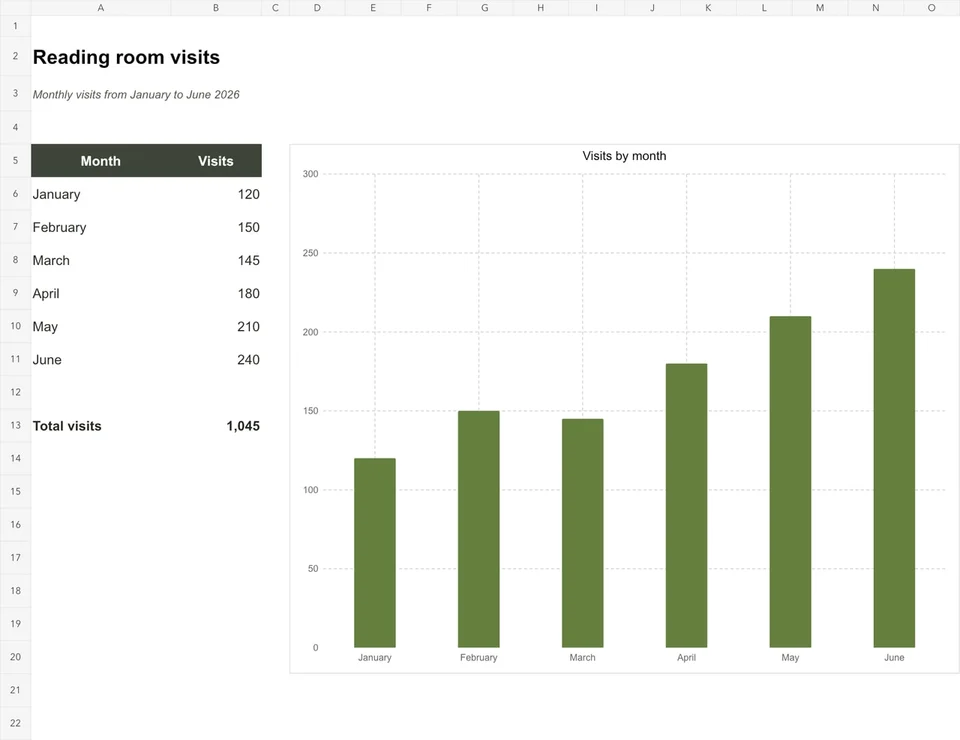
Open the page. Explore the editable file.
Explore an example of monthly library visits as a chart image and an editable Excel workbook. The workbook contains data cells and a native chart, so you can change a value and inspect how the plotted series responds.
Download the sample to edit its text, formatting and content.
How it works
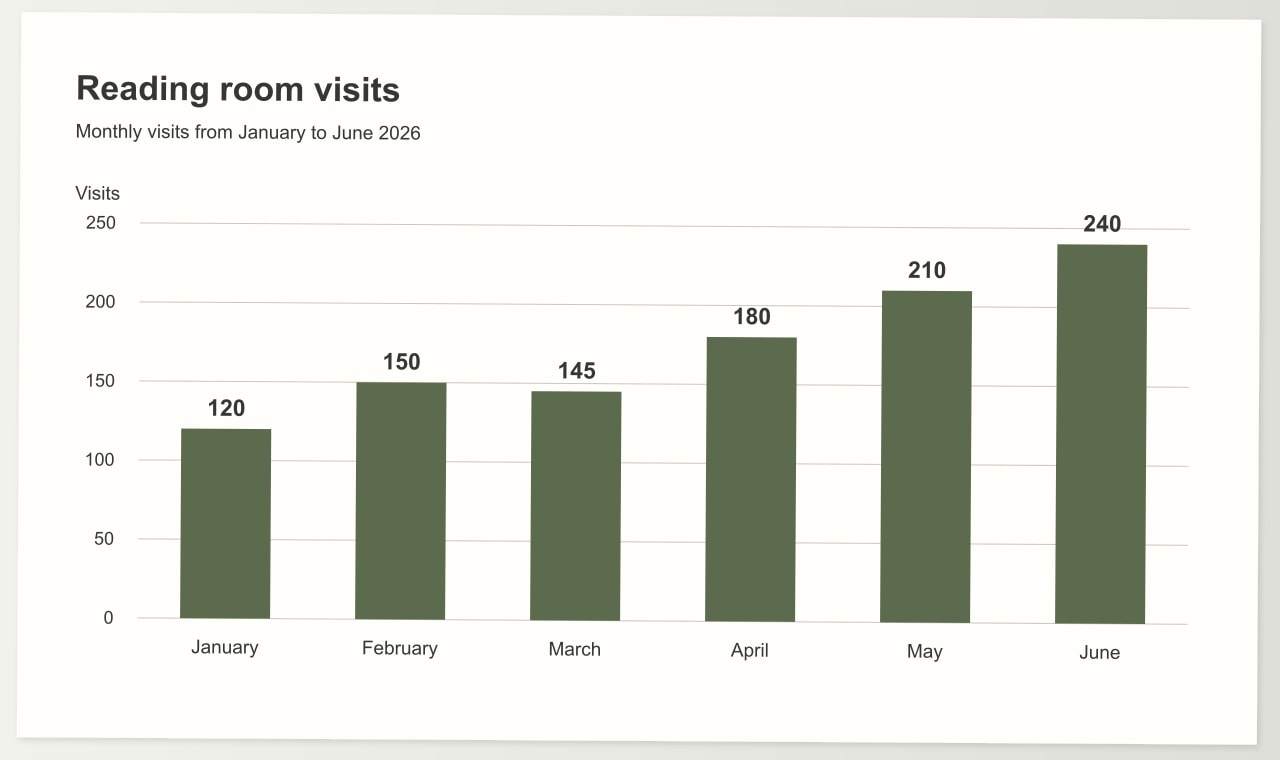
Open the complete chart image
Include the title, axes, legend, units and any explanatory notes. Prefer the highest-quality source you have, and inspect small labels before reconstructing a chart that will be used for decisions.
Review the chart and its data
Make the chart editable, then compare its series, labels, category order and values with the source. Distinguish directly labelled values from estimates and keep unclear entries visible for review.
Export an editable chart
Keep the working document and export the data and chart to Excel. Inspect the native chart range, change a test value and check that the plotted series updates from the intended cells.
What stays editable
- Chart data in spreadsheet cells
- Series names and category labels
- Axis units, scale and titles
- The native chart and its source range
- Chart formatting for reports and slides
Recover the meaning behind the picture
A chart carries several kinds of information at once: the data series, category labels, axis scale, units, legend and title. Recovering the coloured bars alone is not enough to preserve that meaning. Start by reading the complete chart, including notes that explain whether the values are counts, percentages, money or another measure.
Look for relationships between the chart and nearby text. A report paragraph may identify the period or population, while a small note under the chart explains a change in measurement. Keep that context with the reconstructed data. An attractive chart with the wrong unit can tell a different story from the source, even when its shape looks similar.
Separate visible values from estimates
A label printed beside a bar or point supplies a value you can compare directly. Where the chart shows only a scale and a plotted shape, recovering a value may involve an estimate from the geometry. That distinction should remain visible during review. Use the source labels and axis markings to check what the image actually supports.
Do not add precision that the picture does not contain. A thick line, low-resolution image or overlapping data marker may not identify an exact value. Check whether the axis begins at zero, whether it changes scale and whether two series use different axes. Missing or unclear values should be reviewed explicitly rather than filled with a smooth-looking sequence.
Build a chart that stays connected to its data
An editable Excel chart refers to cells. Change one value in those cells and the chart can update with it. Keep series names, category labels and the source range organised so another person can understand which values drive the picture. A chart pasted into a sheet as a flat image will not give you that relationship.
The sample library-visits workbook lets you inspect this connection. Open the workbook, find the monthly data and select the chart. Review the plotted range and labels, then change a value to see the corresponding point or bar move. You can also adjust the chart title, axes and appearance without recreating the source image by hand.
Choose a clear chart for the next audience
Once the data is reviewed, decide how to present it. Keep the original chart type when that is necessary to compare the result with the source. For a new report, choose a type that explains the relationship clearly. A monthly sequence often benefits from an ordered category axis; a part-of-whole comparison needs a meaningful total.
Keep the words and units readable in the exported size. A chart that fits on a large screen may lose its axis labels when placed on a slide or printed page. Check the legend, series order and colour distinctions together, including how the chart reads without relying on colour alone. Retain the reviewed data alongside the finished visual.
Hard cases: no value labels, stacked series and 3D bars
Many charts show bars but print no values. Then the numbers are read from the axis, and each one is an estimate with a margin of error. Keep that distinction in the sheet, for example by marking estimated cells, and replace them with exact figures whenever the original table is available.
Stacked bars, several lines and overlapping areas need more care than a single series. Check that every series has its own column, that the legend names match the right colours and that segments add up to the visible total. Dual-axis charts need the axis of each series written down, or the figures end up comparable only by accident.
A 3D chart, a truncated axis or a log scale distorts what the eye reads. Look at the axis start and the scale before trusting any value, and note a truncated axis next to the data. A low-resolution image can also merge neighbouring bars; when two values look identical, check them against the source.
Your questions
Can I extract data from any chart image?
The useful result depends on what the image reveals: chart type, legible axes, labels and distinguishable series. A dense or decorative chart may hide information that no image alone can establish. Review those limits against the original source and retain uncertainty rather than inventing exact values that were never shown.
What should I check before rebuilding a chart?
Start by identifying the source chart and the relationship it represents, such as categories, a time sequence or parts of a total. Bar, line and pie charts require different structures. Check the reconstructed data and chart type together; matching the outline of a picture is not enough to confirm its values or meaning.
Can I get an actual Excel chart rather than just numbers?
An editable chart should remain connected to data cells in the workbook. The sample library-visits workbook includes that native chart structure. Open it in Excel, inspect its source range and edit a value. This lets you check that the chart is an object you can change, rather than a screenshot positioned above a table.
Can I work with several charts from one page?
Keep each chart associated with its own title, units, series and source region. Review the charts separately before combining their data. Two adjacent charts may describe different periods or populations, so sharing an axis label or table can change their meaning. Give each chart a clear place in the resulting workbook or document.
How do I check that the recovered values are accurate?
Compare visible value labels first, then inspect axis ticks, scale and category order. Check a low, middle and high point in each series as well as any unusual peak. For values inferred from the plotted geometry, retain appropriate precision and review the source limitations before treating them as exact measurements.