

Scanned PDF to Word
Scanned PDF to editable Word
Turn a scanned report, letter or set of notes into a Word document you can revise. Documni reconstructs the text and page structure, so the next change starts with paragraphs, headings and tables you can work with.
Documni is free to start. Making pages editable is part of Pro. Beta opens 25 November 2026.
Open the page. Explore the editable file.
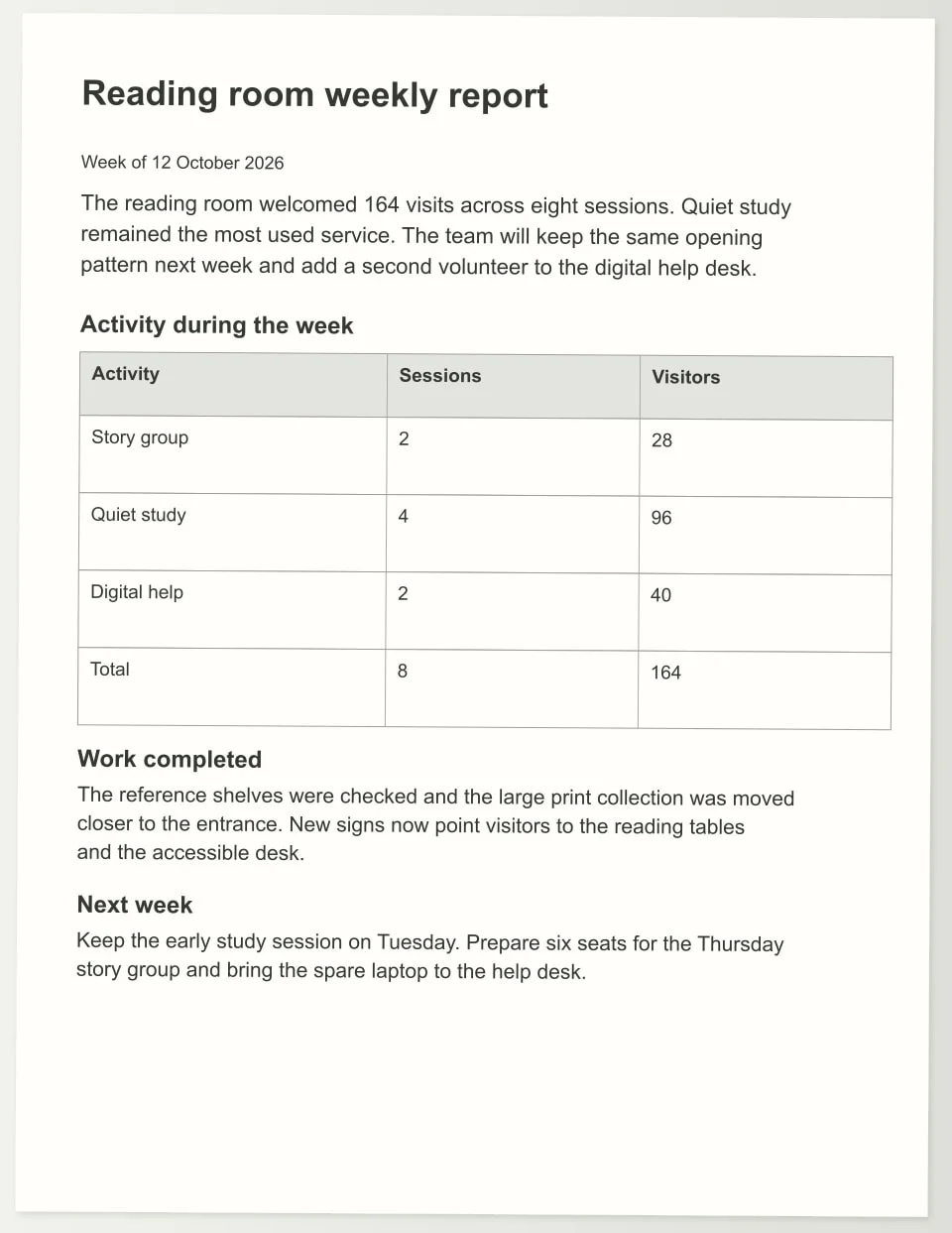
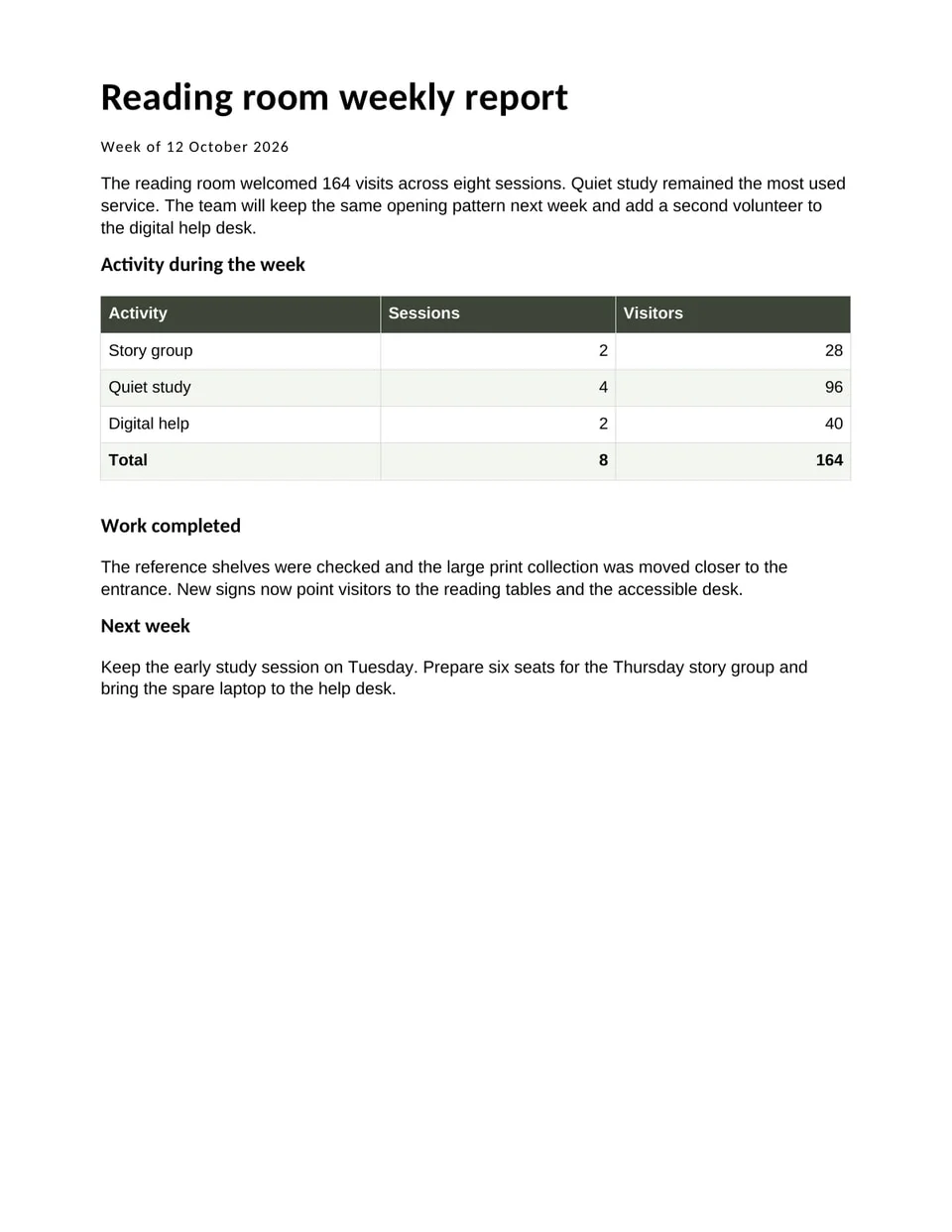
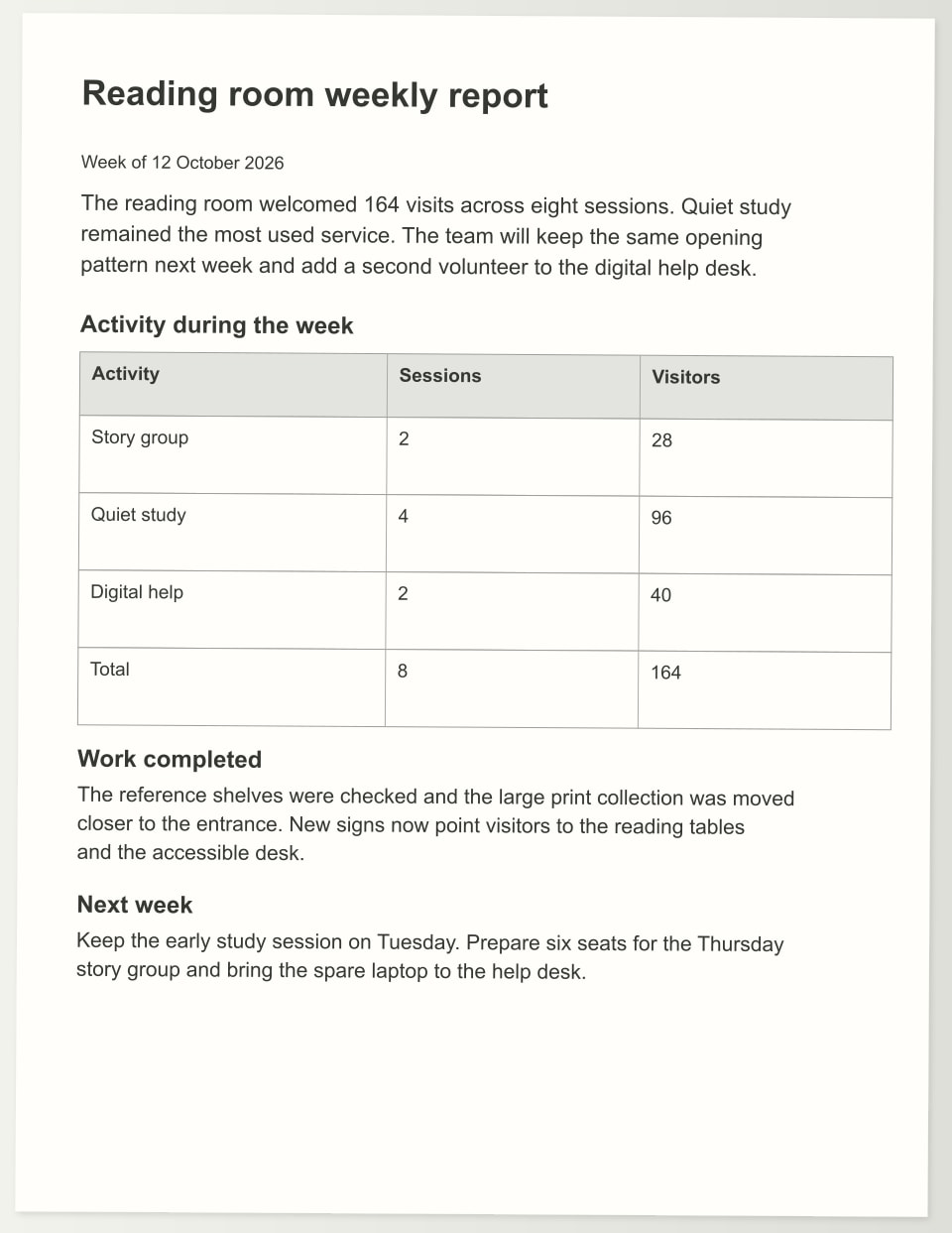
Explore a sample community reading-room report as a page image and an editable Word file. Open the files to inspect the text, headings and table, then try making a change in Word.
Download the sample to edit its text, formatting and content.
How it works
Open the scanned PDF
Bring the original PDF into Documni and inspect its pages. Check the orientation, page order and whether the text is clear enough to read. Keep this source unchanged as the reference for the editable copy.
Make the page fully editable
Reconstruct the page, then review its reading order, headings, paragraphs, tables and images. Correct the details against the source before introducing new wording or changing the layout.
Export a Word copy
Save the working document as .dcmi and export .docx for Word. Open the exported file, select the text and table cells, and check the page breaks before sending it to someone else.
What stays editable
- Headings and paragraph text
- Table cells, rows and columns
- Lists and their reading order
- Images and captions
- Document styles and page structure
What changes when a scan becomes a Word document
A scanned PDF usually holds a picture of each page. The words may look clear on screen, yet selecting a sentence can select the whole image. Adding searchable text helps you find a name, but revising the report also requires its paragraphs, headings and tables to become document elements. Documni brings that structure into an editable working document.
Think about the change you need before choosing the final format. A report that will gain new paragraphs belongs in a flowing Word document. A page whose exact positions must stay fixed may be better edited as a PDF. You can keep an editable Documni file alongside either export, so the original reconstruction remains available for later work.
Keep the reading order and the useful layout
A good Word copy follows the order a reader expects: title, introduction, body, tables and closing notes. Multiple columns, small captions and text beside an image need particular attention. Compare those regions with the source before making larger changes. A paragraph that appears in the wrong place can change the meaning even when every individual word is correct.
Page layout also needs a purpose. Preserve the heading hierarchy, table relationships and placement of important images, while allowing the text to flow when you add a sentence. Use paragraph styles and deliberate page breaks rather than a line of spaces. This gives the document a layout you can maintain after the first edit.
Work with real tables and document text
The reading-room sample shows why structure matters. Its table belongs to the report, with headings that describe the values beneath them. In an editable file you can change a cell, insert a row and adjust column widths. Keeping the table as a picture would make each of those changes a separate design task.
The same principle applies to body text. Select a sentence, revise its wording and check how the paragraphs below it move. Check that headings use appropriate styles and that lists keep their order. Images remain separate document elements, so you can replace a photograph or adjust its size without turning the whole page into a new image.
Review the details that affect meaning
Read names, dates, amounts and reference numbers against the original page. Look closely at short words, punctuation and similar characters such as a zero and the letter O. For a long document, check a page from each distinct layout as well as the first and last page. Repeated headers should stay separate from the body text.
Keep the source open while reviewing the Word copy. Check the table headings, the beginning and end of each paragraph, and any text close to a page edge. If a scan is cropped or blurred, return to a clearer source where possible. Review decisions belong in the document; missing words or unclear values should never be silently filled in.
Hard cases: crooked photos, two columns and faint scans
Not every scan is a clean flatbed page. A photo taken at an angle tilts every line, so check that the first and last words of each paragraph still sit where they belong after reconstruction. Two-column layouts are the usual trouble spot: read down the left column before the right one, and confirm that a caption or sidebar has not slipped into the main text.
Stamps, handwritten margin notes and highlighter marks sit on top of printed words. Compare every stamped line with the source, and decide whether the note belongs in the document or should stay part of the picture. Faint or grey scans lose thin strokes first, so look closely at commas, full stops and the difference between 1, l and I.
A table that continues on the next page is easy to split in two. Check that the header row is not repeated as data and that totals still sit under the right columns. If a page is too faint or cropped to judge, rescan it instead of accepting a guess. The Word copy is only as certain as the page it came from.
Your questions
How do I convert a scanned PDF to Word?
Open the scan in Documni, make the page fully editable, review the reconstructed content and export a .docx copy. Keep the source beside it while checking reading order and important details. Download the example report on this page to explore its page image and editable Word file.
Can I convert a scanned PDF to Word for free?
The sample files on this page are free to download. Documni Free covers everyday viewing, annotation, form filling, page organisation and PDF export. Recognition, reconstruction and advanced conversion are part of Pro. Choose your plan around the work you need; downloading a sample does not start a subscription.
Will the Word file keep the original layout?
Reconstruction preserves the useful structure and visual relationships of the page. Word also allows text to reflow as you edit, so check margins, tables, images and page breaks after export. If a fixed page position matters more than flowing text, keep a PDF version alongside the Word document.
What should I check in a document with more than one language?
Review the document in its own language, including accented letters, punctuation, names and number formats. Mixed-language passages and text near page decorations deserve a close comparison with the source. Choose a clear scan and retain uncertain wording for review rather than replacing it with a plausible sentence.
Can I edit the text after converting?
Yes. The goal is document text you can select and revise, with separate tables and images where those belong. In the sample Word file, try changing a sentence and adding a table row. Keep the .dcmi file as your working copy when you need to return to the broader document structure.